Managing shares
Day-to-day upkeep of a share you own. All of these are reached from the buttons at the top right of the share.
Editing share details
Edit opens the same form used when creating a share, populated with the current values. Name, friendly URL, description, tags, the read-only flag and the email footer can all be changed after the fact.
Changing the friendly URL changes the URLs people use to reach the share, and the directory name they see over SFTP. Any links you have already sent out will stop working, so avoid it once a share is in circulation.
Storage used
The share information panel shows Share size along with when that figure was calculated, for example 2.3MB (updated Aug. 7, 2026, 11:47 a.m.). It is not recalculated on every page load — walking a large share is expensive — so treat the timestamp as part of the answer.
An Update link appears next to it to recompute on demand, but only when both are true:
- you have Admin permission on the share, and
- the size is either unknown or more than an hour old.
So if you have just uploaded data and no link is offered, the figure was computed within the last hour. Wait, then reload.
The home page also reports your overall storage. That total comes from statistics refreshed on a schedule rather than live, so it can lag recent uploads; the note beneath it says how often.
The activity log
The Logs tab records what has happened to the share.
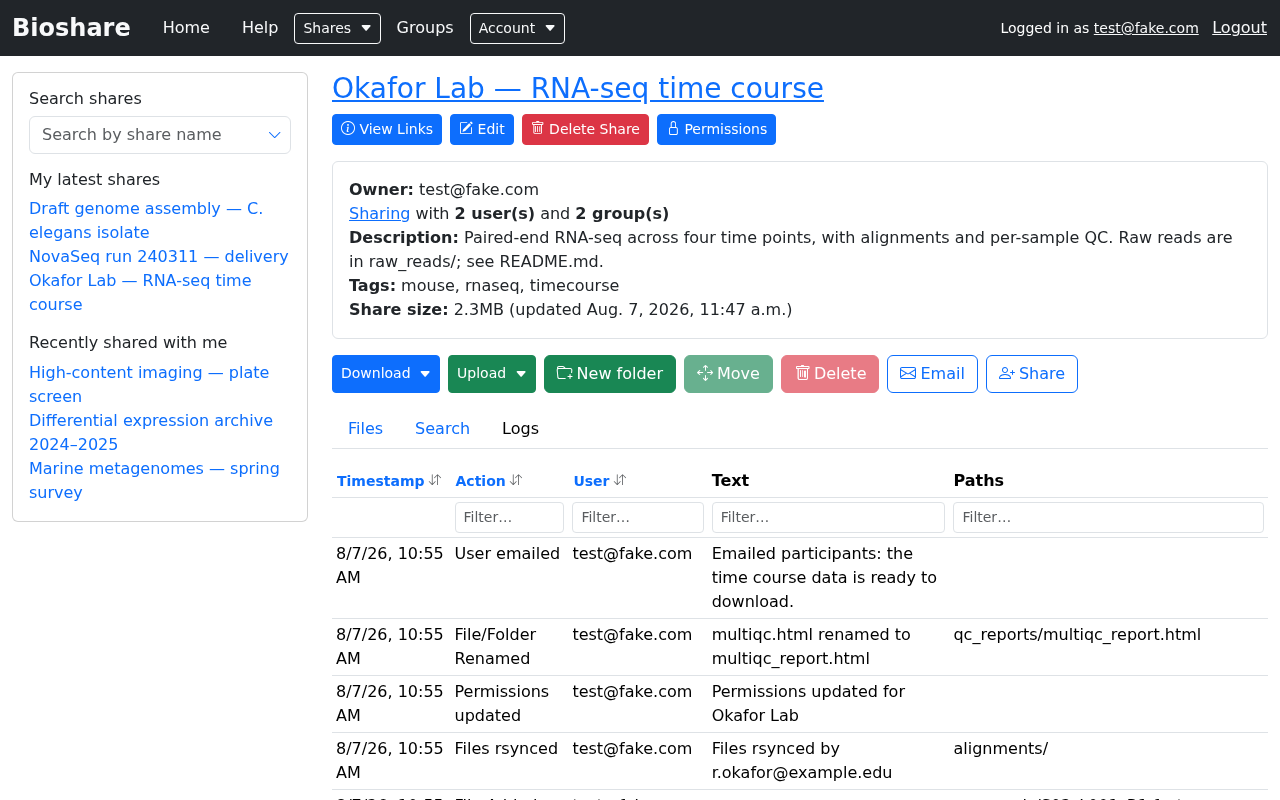
Each entry records a Timestamp, the Action, the User responsible, free text describing what happened, and the Paths affected. Sort by clicking a column header, and narrow a busy log with the filter boxes — filtering on Paths is the quickest way to answer "what happened to this folder?".
Logged actions include files being added, folders created, entries renamed, moved or deleted, symbolic links created or removed, rsync transfers, permission changes, emails sent to participants, and errors.
Two things this answers well:
- "Has the upload finished?" — a long rsync or SFTP transfer shows up here as it progresses.
- "What happened to that folder?" — deletions, moves and renames are attributed and timestamped.
Emailing participants
Email opens a dialog for messaging the people who have access to the share.
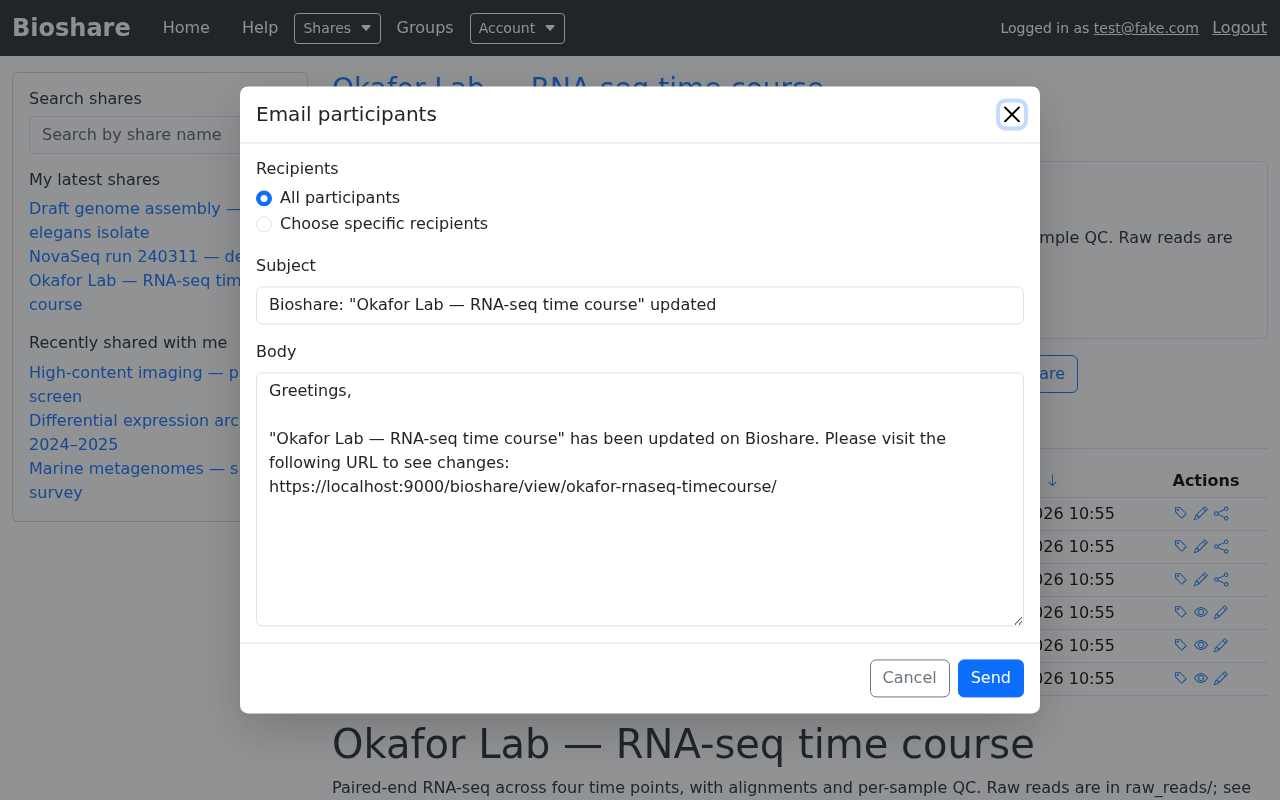
Choose All participants, or Choose specific recipients to pick individuals. The subject and body are pre-filled with the share's name and a direct link to it, so in the common case — "the data is ready" — you can send without typing anything. Edit the body freely; the link is just text.
This is the tidy way to notify collaborators without assembling an address list by hand, and it guarantees the recipients are exactly the people who can actually open the share.
Messages sent this way are recorded in the activity log as User emailed.
Symbolic links
If a share contains symlinks, View Links lists them and where each one points. Only the share's owner may view this page.
It matters because a symlink can point outside the share — at another part of the server's filesystem. Reviewing the list lets you spot and remove links that would expose more than you intended.
Deleting a share
Delete Share removes the share and its contents. You are asked to confirm first.
Deletion is permanent
Files removed with the share are not recoverable through BioShare. If the data might still be wanted, consider marking the share read-only instead, or move the data elsewhere first.
Deleting a share that has subshares affects the directories they point at, since they are all views of the same files.