Permissions
Anyone with Admin rights on a share can control who reaches it and what they may do. Open the share and click Permissions.
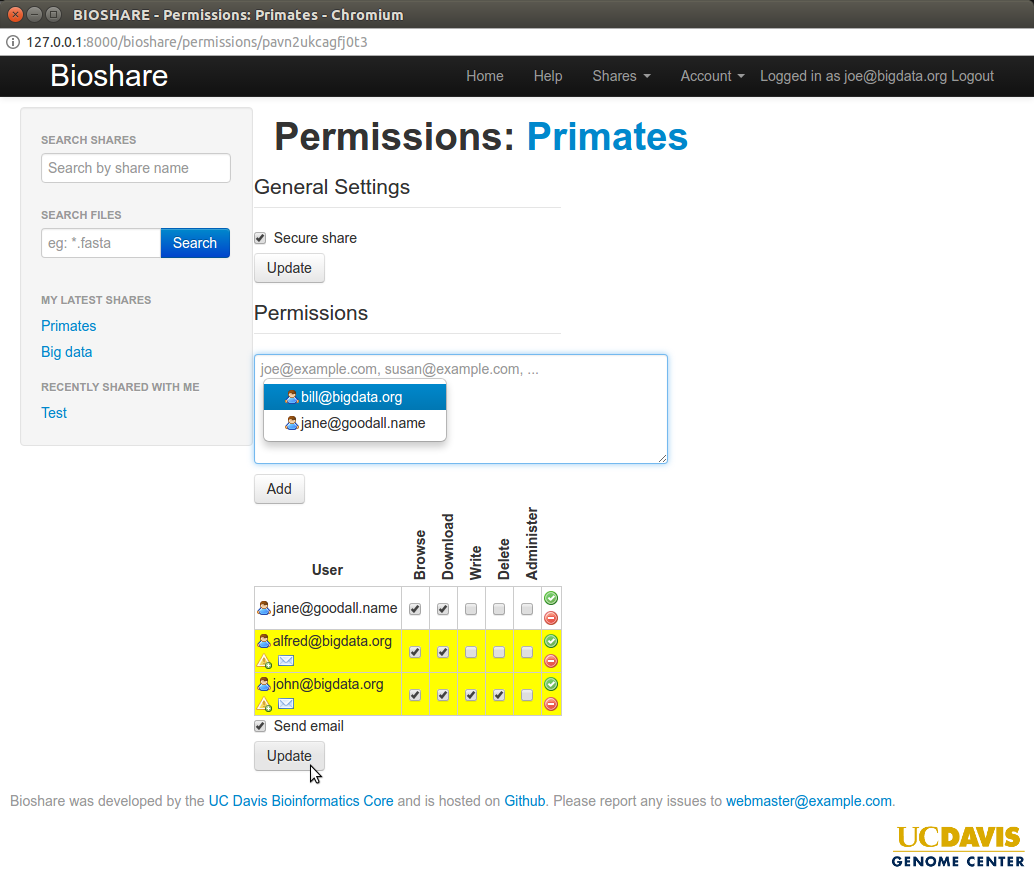
Secure share
The Secure share checkbox under General settings decides whether authentication is required at all:
- Checked — visitors must log in, and must appear in the permission list below with at least Browse and Download, to see anything.
- Unchecked — anyone who has the URL can view and download the files.
Writing, deleting and administering always require a login and the matching permission, whatever this setting says. Secure share governs read access only.
This setting has its own Update settings button, separate from the permission table's.
Unchecking this makes the data public to anyone with the link
The URL is long and random, but it is not a secret — it travels in emails, browser history and server logs. Leave Secure share on for anything sensitive.
Granting access
Use Add a user or group to pick someone. You can:
- Choose a known address or group from the suggestions, or
- Type a full email address to invite somebody who has no account yet. An account is created for them and they are emailed their credentials.
To share with a group rather than an individual, select the group from the same box. Groups are covered in Groups.
Choosing someone adds a row to the grid, already ticked for Browse and Download — the usual starting point for somebody receiving data. Adjust the boxes from there.
Nothing is saved until you click Update permissions
Adding a row changes only what is on screen. The row is flagged Modified and a "You have unsaved changes" notice appears beneath the grid; the access itself is not granted until you click Update permissions.
After a successful save the Modified flags clear and a "Permissions saved" confirmation appears. If you navigate away before saving, the change is lost.
What each permission allows
Each row in the table is one user or group — the icon beside the name distinguishes them — and each column is one permission:
| Column | What it allows |
|---|---|
| Browse | See that the share and its files exist. Required for everything else — without it the rest have no effect |
| Download | Retrieve files. Combined with Browse, this also enables SFTP and rsync downloads |
| Write | Create, upload and rename files and folders |
| Delete | Remove files and folders. Also required, alongside Write, to upload by rsync |
| Share | Pass the share on to other people read-only, without granting any ability to change the data |
| Admin | Everything above, plus editing the share and changing these permissions |
Two combinations are worth remembering:
- Browse + Download is what a typical collaborator receiving data needs.
- Write + Delete together are what an rsync upload needs — Write alone will
fail with a
cannot write to shareerror.
Email notifications
Send email to newly added users controls whether people you add are told about it. The message contains a link to the share.
Two details are easy to miss:
- People who already had permissions are never emailed, even when you change what they can do.
- Brand new accounts are emailed regardless of this checkbox, because otherwise they would never receive their credentials.
If your instance defines email footers, a share can carry one — a standard sign-off appended to these notifications, usually identifying the group or facility sending the data. Pick one on the share's create or edit form.
If you are unsure what a column means while working through the grid, What do these permissions mean? just above it expands an explanation in place.
Changing and removing access
The Actions column at the end of each row has three shortcuts:
- Grant all — tick every permission for that user or group
- Clear all — untick every permission, leaving the row in place
- Remove — take the user or group off the share entirely
All three are subject to the same rule as everything else on this page: click Update permissions afterwards, or nothing changes.
Note that clearing every permission is not the same as removing the row. A row with nothing ticked still lists that person as associated with the share; removing takes them off it.